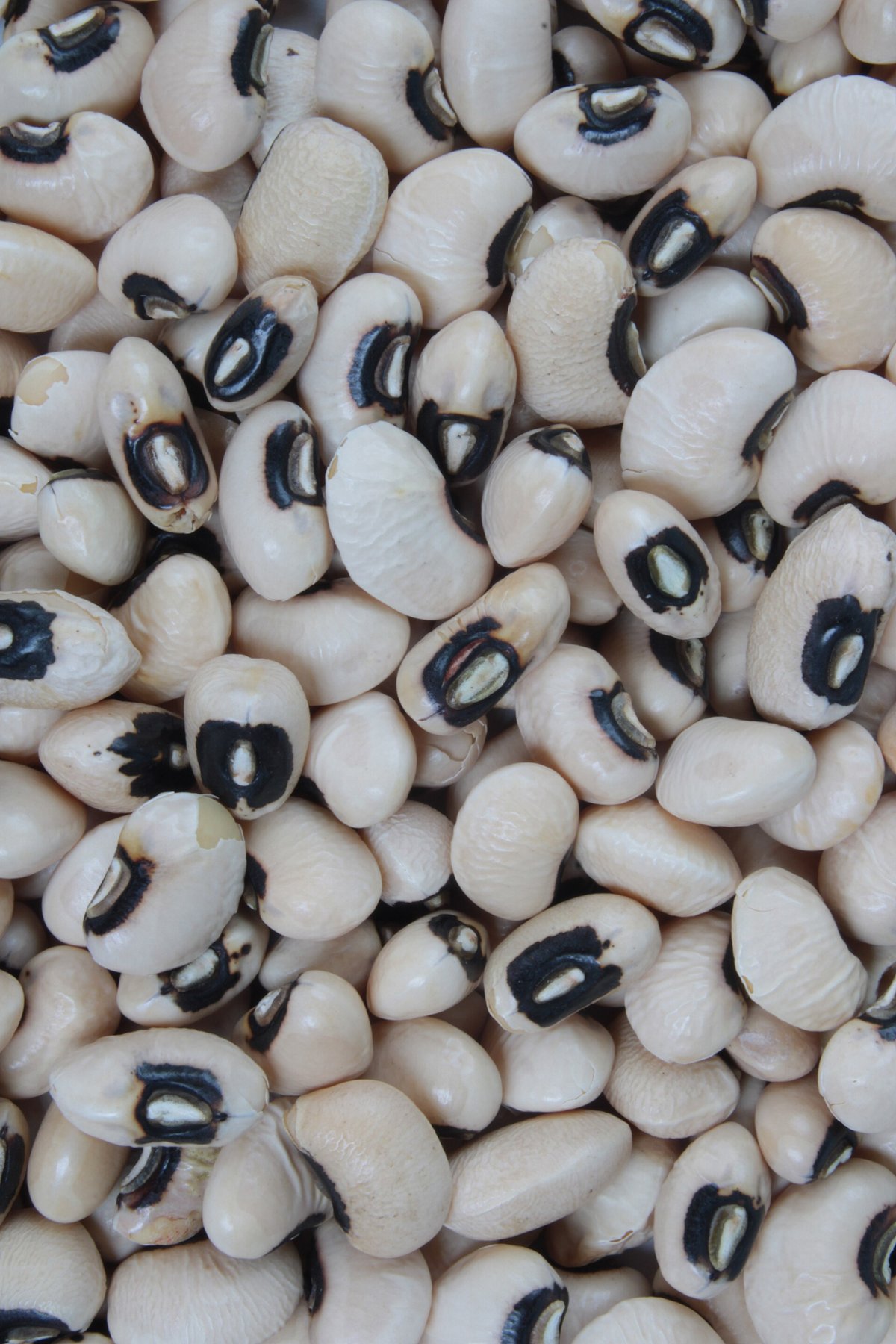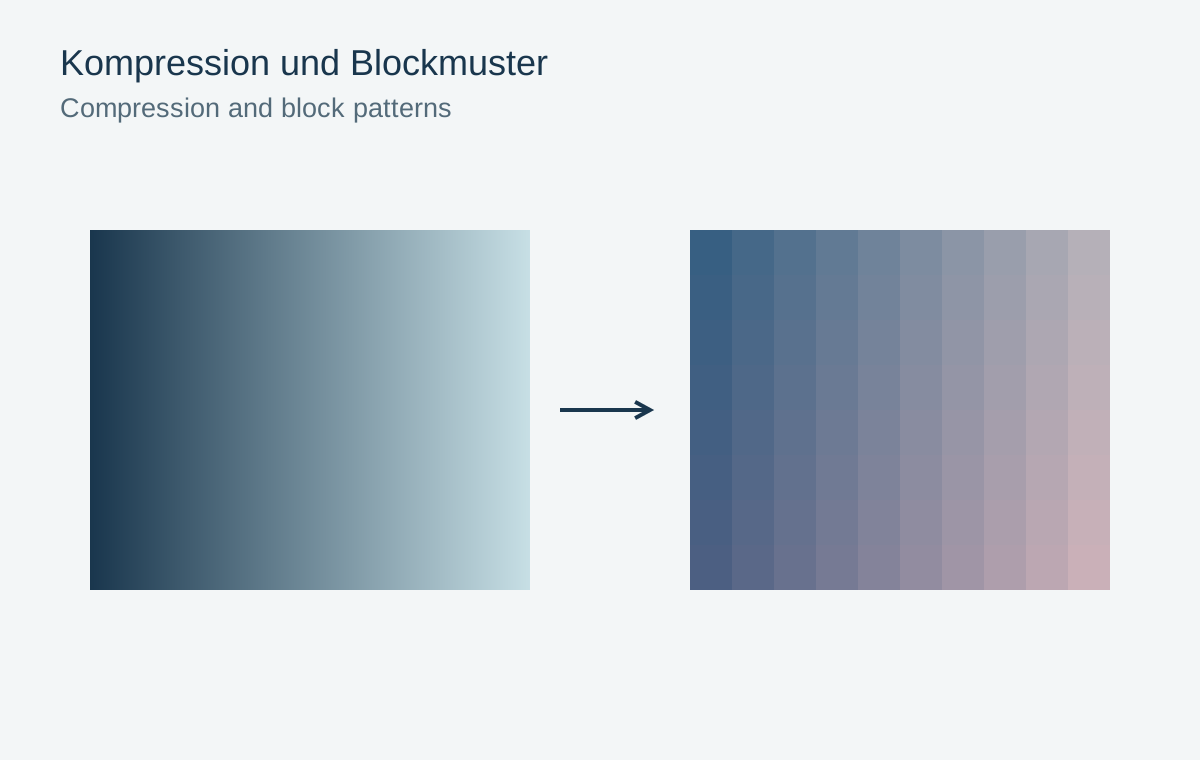
JPEG saves space by simplifying image information. With a suitable setting, the difference remains small; strong compression can create visible patterns. The photograph does not merely look generally soft. Small disturbances appear around lettering and hard edges, smooth areas show blocks, and fine textures become unevenly smoothed.
Inspect revealing areas
Inspect a dark roof against a bright sky, small red lettering and a smooth gradient. These areas often reveal compression damage more clearly than coarse texture. Compare around one hundred percent and at the actual output size. Extreme magnification alone can make harmless differences look dramatic.
Distinguish compression from motion blur. Camera shake often creates directional doubled contours, whereas JPEG artefacts tend to follow edges and block-like patterns. Several causes can coexist. Sharpening may then intensify compression damage rather than restore lost subject detail.
Start from the best available source
Before attempting extensive repair, look for the original camera file or a less compressed copy. A preview saved from a messaging service may be much smaller and more processed than the source. Ask for the original file rather than a screenshot where possible.
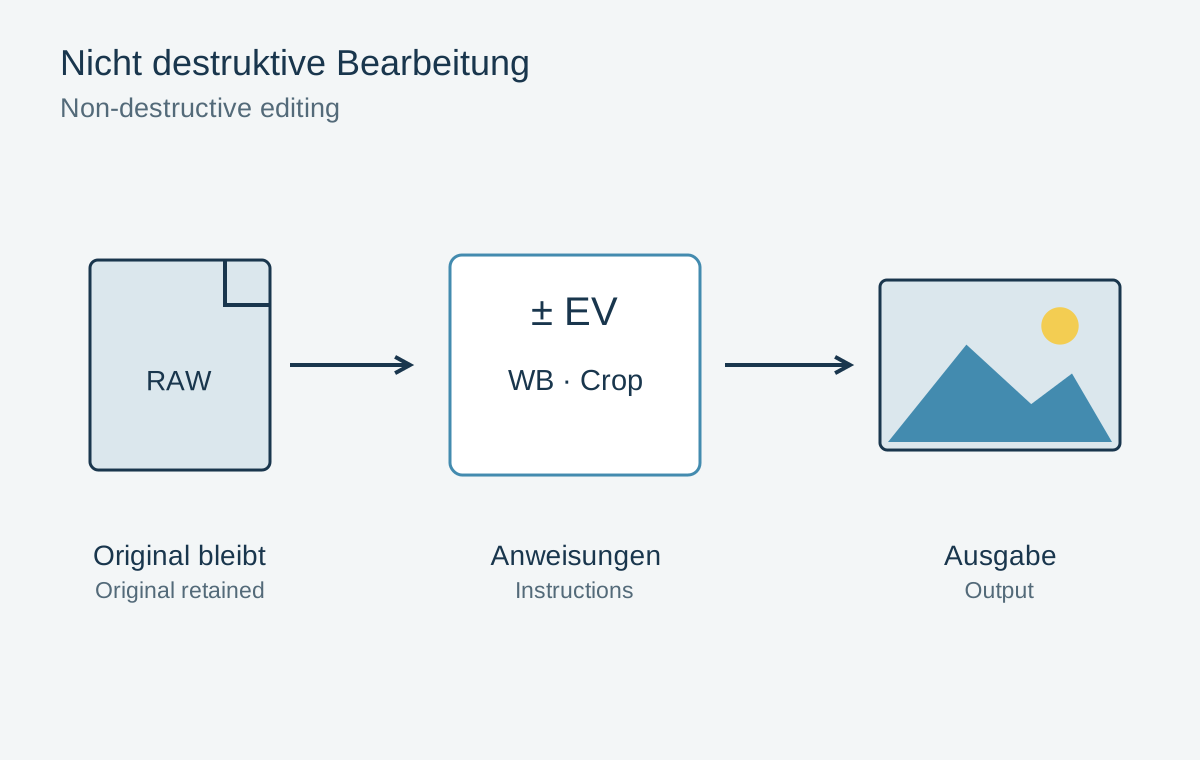
Avoid a chain of opening, editing and resaving JPEGs. Each new lossy export can add further changes. Keep a high-quality editable version and create the required outputs from it. Simply copying the same file, by contrast, does not recompress the picture.
Also check whether a service recompresses pictures after upload. Compare its downloaded version with your local export. If small lettering becomes untidy only there, the delivery path may be responsible. Adding a caption as real website text may then work better than embedding lettering within a photograph.
Understand repair as a compromise
An artefact-removal filter can reduce distracting patterns, but may smooth genuine fine structures as well. Compare hair, fabric and lettering before and after processing. A uniformly softer surface is not automatically a more accurate reconstruction.
For the next export, test two or three quality settings at identical pixel dimensions. Compare file size and visible differences in the destination medium. Percentage values from different applications are not directly comparable. Choose a setting that preserves important details and inspect the saved file rather than only the export preview.