A phone can capture a receipt, letter or handwritten notes as a PDF. The important quality test is the smallest relevant writing, rather than an attractive thumbnail. A neatly cropped page is of little use if an account number or pencil annotation remains unreadable. Prepare the original first, then check the result before putting the paper away.
Make the page flat and evenly lit
Place the sheet on a flat surface with a different colour so automatic edge detection can distinguish its boundaries. Remove paper clips if they cast shadows over writing. Gently flatten folded letters, but do not force fragile documents or bound pages apart.
Use soft daylight from the side and avoid the shadow of your hand. Keep the phone approximately parallel to the page. A steep angle requires substantial perspective correction and spreads the available pixels unevenly. Glossy receipts sometimes need a small change in lighting direction. Flash can instead produce a white patch that hides characters completely. Check both upper corners and the area closest to your hand before starting a multi-page scan.
Capture pages and inspect their boundaries
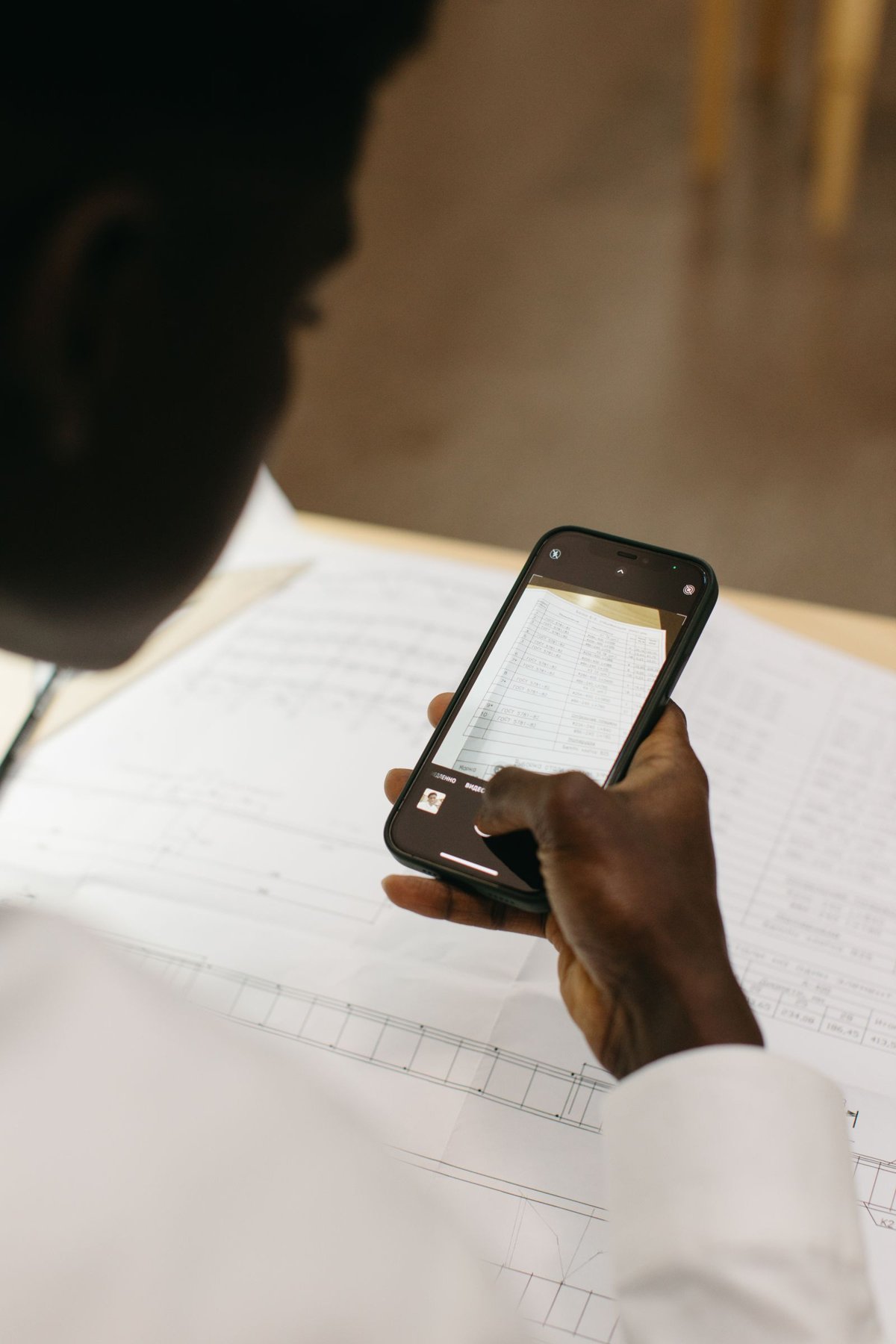
On iPhone, Notes and Files are among the apps that provide document scanning. The command’s location depends on the software version. Use automatic capture while it recognizes the correct area; otherwise capture manually and adjust the four corners. Do not cut off page numbers or annotations near the edge.
For several pages, check their order immediately. Rotate pages captured sideways and retake individual blurred scans. Strong black-and-white conversion may remove faint pencil lines or coloured highlighting. Compare it with a colour or greyscale version rather than assuming that the highest-contrast filter is always best.
The image and recognized text are separate results
A PDF page may look readable as an image while containing incorrect recognized text. Conversely, search may find a word even though the visible page is too dark or cropped. Check both layers separately if the document will be searched or processed later. Start by searching for a distinctive word near the middle of the page. Then copy a short number into a blank note and compare it character by character with the paper.
Consider an invoice showing 1,018.50 and a long payment reference. Check decimal marks, separators, leading zeros and similar characters such as O and 0. Never rely on unchecked OCR text when entering payment details. Correctly finding the recipient’s name does not prove that every number was recognized accurately.
If only the middle is sharp, first check whether the phone is parallel to the sheet and whether the paper edges curl. If the whole page is soft, retake it with steadier support and more even light. Dark corners require better illumination rather than simply stronger overall contrast. For difficult historical documents, retain a colour capture alongside the processed version so faded ink and paper details remain available for comparison.
Open the saved PDF
Give the file a meaningful name and reopen it after saving. Enlarge small numbers, stamps and signatures. Also check that every relevant reverse side is included. Text recognition can help with searching but does not replace visual inspection: a recognized zero might actually be a letter.
An upload service may impose a file-size limit. Reduce size on a copy first, then recheck legibility. Keep the larger source file rather than deleting it simply because an upload portal accepts only a smaller version.