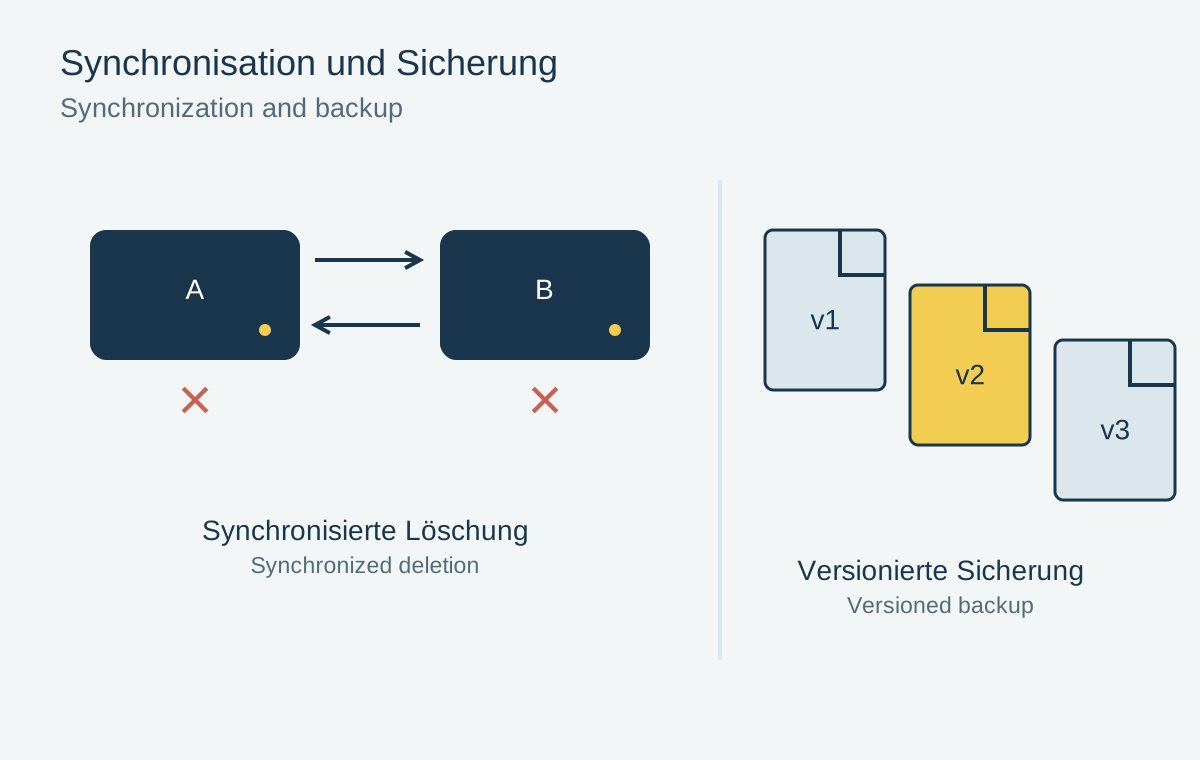
A photograph appears on both a laptop and a phone. That is convenient, but says little about whether an accidental deletion can be recovered. Synchronization keeps several views of a collection in step. A backup should allow a previous usable state to be restored. One service can provide both functions; what matters is its actual behavior.
Deletion is the revealing test case
Imagine deleting a shoot folder that appears to be a duplicate. A synchronization service may carry that change to the other connected devices. The second visible copy is then not independent protection against this particular mistake.
A recycle bin and version history can help, but they have their own time limits, scope and conditions. Check whether the service covers deleted originals, overwritten files and changes to entire folders. A green synchronization icon does not answer those questions by itself.
An image visible in a file manager is not necessarily stored in full on that device. With on-demand cloud files, it may initially be only a placeholder. A local backup process needs to receive the actual data rather than merely a list of filenames.
Create a separate recovery layer
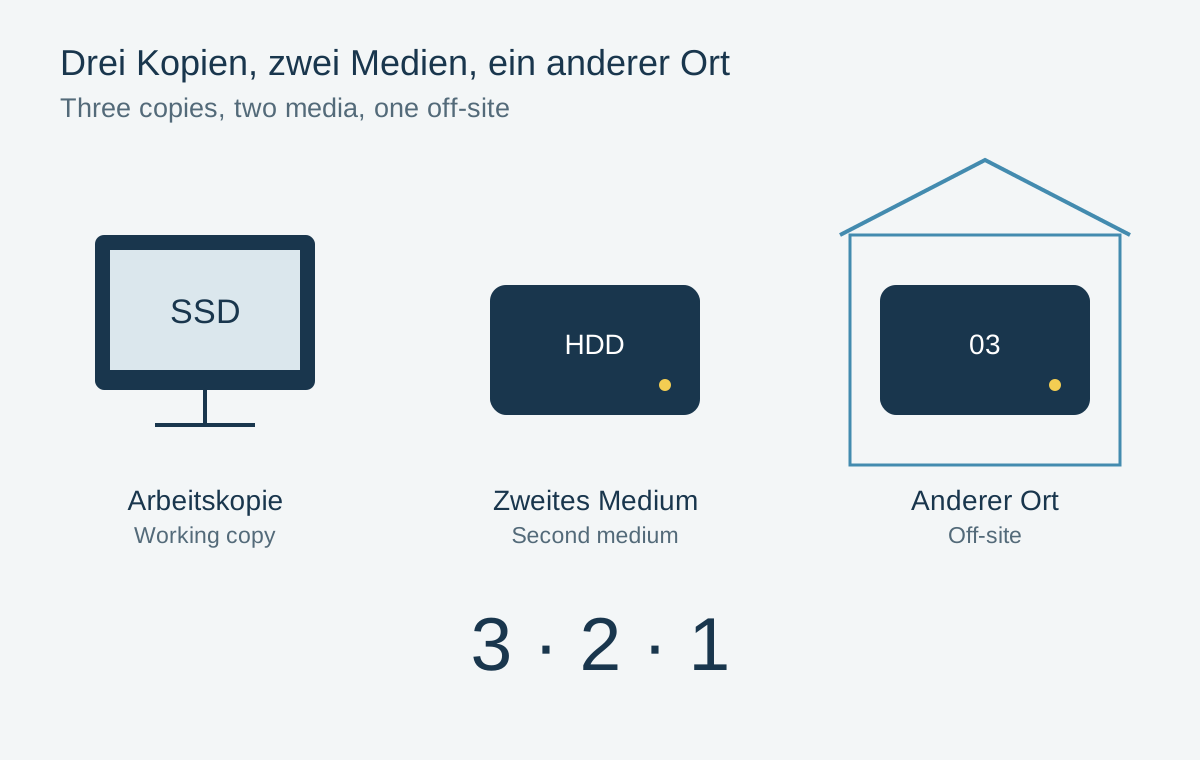
An additional backup might retain dated versions on an external drive. Disconnecting that drive after the backup run prevents a later synchronized deletion from immediately reaching this copy. A second storage location elsewhere also helps when the shared physical location is damaged.
Describe the arrangement through a concrete loss scenario: what would you open if the working file disappeared? Which earlier state could you select? Which credentials would you need? This exposes dependencies that can remain hidden behind several similarly named cloud folders.
Start with a disposable test file
Test the behavior with a newly created disposable image, not the only copy of a family photograph. Synchronize it, back it up, change it and then inspect the available recovery routes. Restore the earlier version into a separate folder and open it.
A successful trial describes the current configuration. Repeat it after changing providers or substantially changing the storage arrangement. Convenience and protection can coexist when you know which part distributes the current state and which preserves a previous state.
Use an accidental deletion as a thought experiment
Imagine accidentally removing a folder on Monday and noticing only on Friday. With a simple mirror, the second drive may now look exactly like the first: the folder is missing from both. A backup retaining earlier states might still contain Sunday’s version. What matters is not the word “cloud” or “backup” on an interface, but whether that earlier state is actually retained and accessible.
Check how long deleted files and previous versions are kept. Some systems limit retention by time, storage space or number of versions. A daily backup helps with a late-discovered mistake only if the required earlier state still exists. Record the rule configured for your archive alongside its backup plan.
Synchronization can also offer a recycle bin or version history. That makes it more useful, but does not automatically replace an independent copy. A locked account or an accidentally changed sharing permission can make several synchronized devices inaccessible at once. Establish which files remain available without that account and how to retrieve the rest.
A harmless test uses a purpose-made folder containing a few copies. Synchronize it, modify one file and then try retrieving the earlier state into a separate destination. Do not delete real archive photographs for this exercise. The trial shows both which version returns and whether you can find the restoration procedure again later.